ENFR
Buy — €19
Version 2.0 — Template documents · Word merge · bilingual ribbon

Your folders and your documents, created from Excel

Every row of your table becomes a structured folder on your disk, with your standard documents already filled in with the client's name. The template changes? Your documents update themselves as tracked changes, without ever overwriting your work. Up to 7 trade tools on the ribbon. Non-destructive, no database, no subscription.

🛡️ Satisfied or refunded for 30 days — try it on your real folders, at no risk.

What changes in version 2.0

Version 1 created the folders. Version 2 also takes care of what goes inside them: your standard documents, already filled in, and kept up to date when your template evolves.

New

Your standard documents, already filled in

Put a __Model__ folder next to the workbook. Its files become the starting point of every client folder: Word, Excel, PowerPoint, text. Tags such as <$Nom du Dossier>, <$Categorie>… are replaced with the row's values, right down to headers and footers.
New

The template evolves, your documents follow

The Templates button compares the document already delivered with the corrected template and injects the differences as Word tracked changes : you accept or reject each one. The client's work stays intact, and a time-stamped copy is laid down before any modification.

New

Bilingual, careful, and it explains itself

Ribbon in French or English (automatic or forced), preview of the exact path before every creation, environment checks — paths too long, folder on OneDrive, file still quarantined — and a Report a problem button that prepares the message with the diagnostics.

Demo mode: see what happens on your PC

Nothing to install, nothing to download. Click in the workbook as you would in Excel — one row, or several at once : on the right, your disk reacts exactly as it would on your machine, click after click. A faithful reconstruction of the interface — the real screenshots are just below.

Loading…
📗 Clients.xlsm — Excel —□✕
File Home Insert Data DossiersLocaux
1 · Local folders
2 · Templates
3 · Options
Client Category Status Subject Creation date Time
Ready Selected row
🖥️ File Explorer This PC
D:\Folders

🧾 What happens on your PC

    What you have just done in three clicks, the add-in does on your rows and your documents. Get the add-in — €19

    The moment it opens, everything is already explained

    No manual to download: the workbook opens on its own illustrated instructions, with the five setup steps you only ever do once.

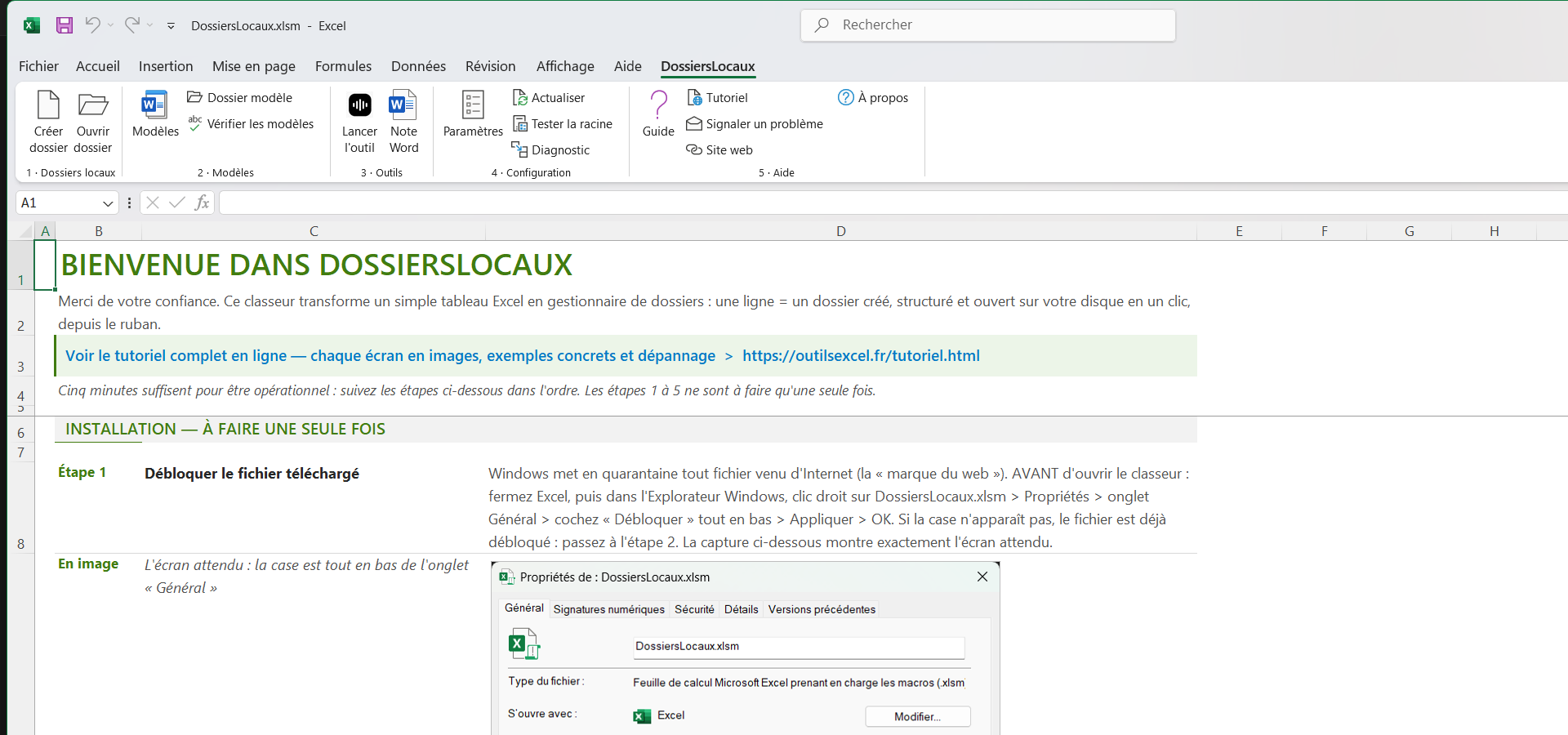
    Welcome sheet of the DossiersLocaux workbook, with the setup steps
    The welcome sheet of the workbook as delivered. A real screenshot — as are all the images on this page.

    The central gesture, in three screens

    You click a row, then Create folder. The add-in first shows you what it is about to do, does it, then opens the folder for you. Nothing is overwritten, ever.

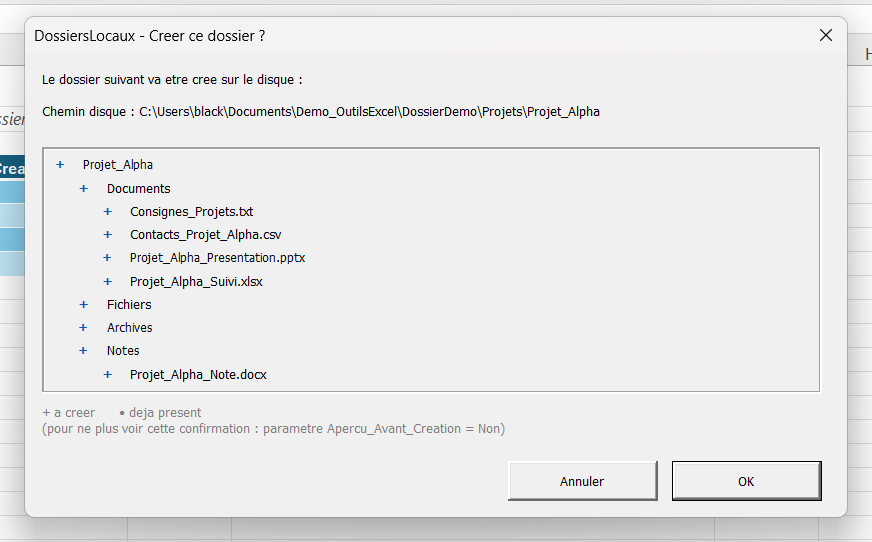
    Preview of the exact path before the folder is created
    1. You are shown first. The exact path, the subfolders and the documents, before anything is written to disk. Can be switched off with one setting.
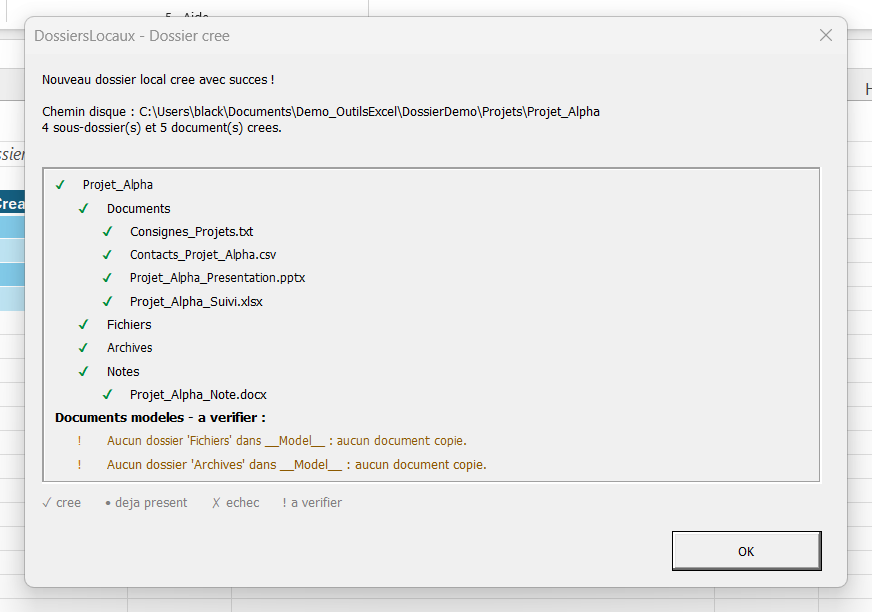
    Creation report: path, subfolders, documents copied
    2. You are told what was done. Subfolders created, documents copied from the template folder, and what was missing to go further.
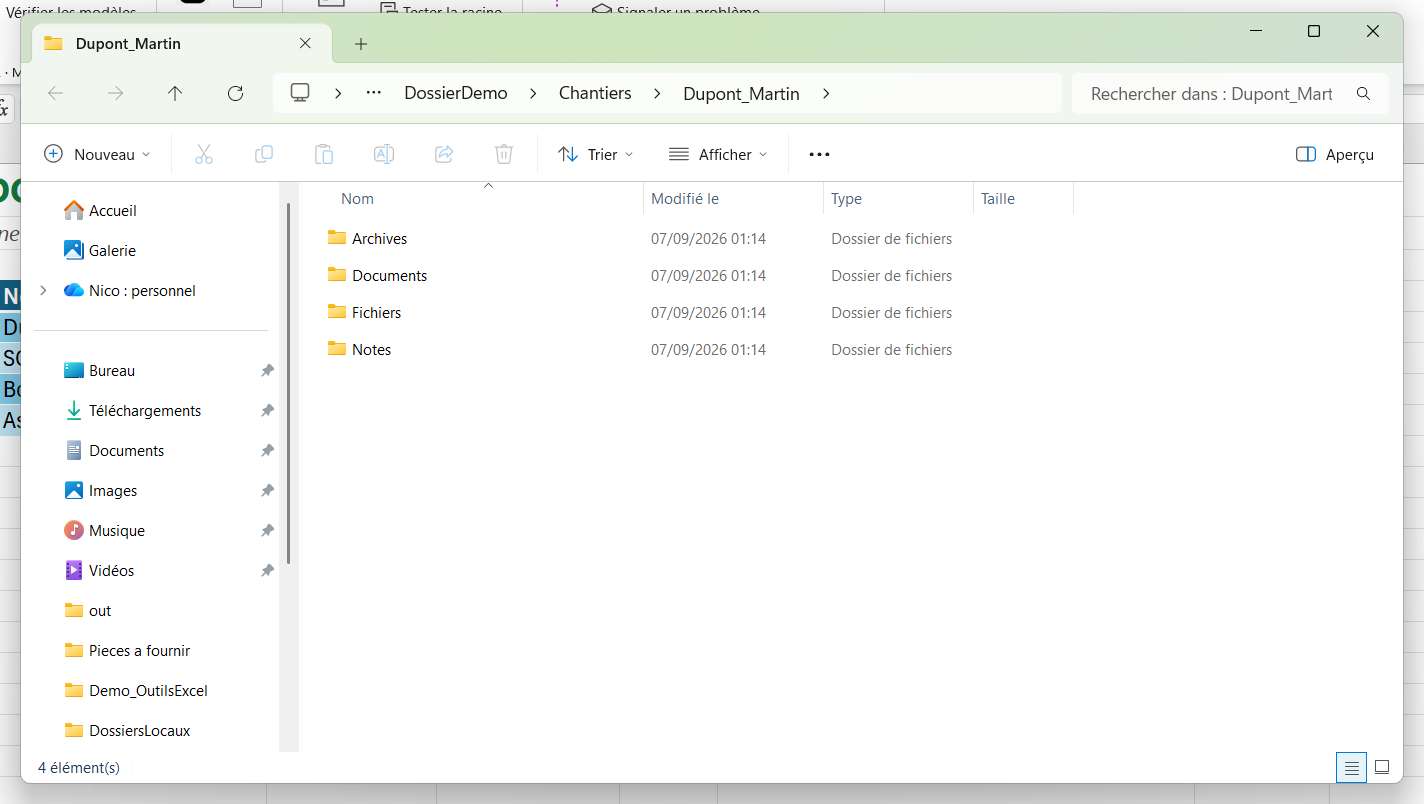
    The folder created on the disk, with its subfolders
    3. The folder opens. On your disk, your server or your NAS — in a tree you described once and for all.

    The date and time write themselves

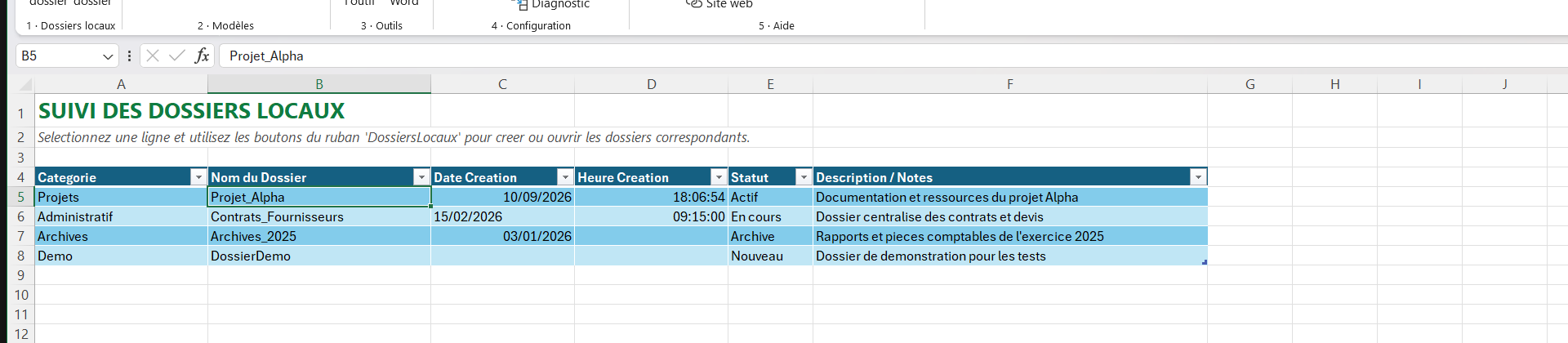
    The table stays your table: your columns, your filters, your formulas. The add-in simply writes in the creation date and time, in the columns you pointed it at.

    A folder already created? The button completes what is missing and leaves the rest strictly in place.

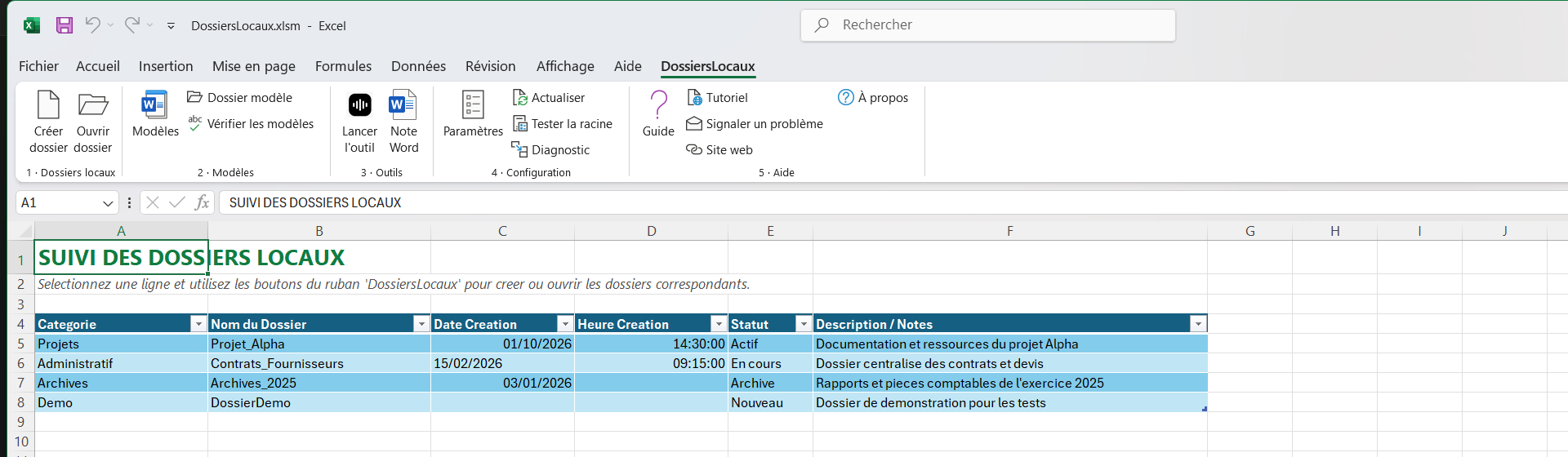
    The Excel table with the creation date and time written in automatically
    The processed row carries its date and time; the others are untouched.

    Your standard documents, already in the client's name

    One __Model__ folder placed next to the workbook is enough. Its subfolders describe the tree, its files become the starting documents — and each one arrives personalised for the selected row.

    Write the template once, it fills itself in

    In your Word template, write <$Nom du Dossier> where the client's name should appear. When the folder is created, the document is copied and then adapted to the active row.

    • Word, Excel, PowerPoint, txt, md, html, csv, rtf
    • Body text, headers, footers, text boxes
    • Fields DOCPROPERTY fed by your columns
    • The file name follows the row: Dupont_Martin_Note.docx
    • A tag with no matching column stays visible, rather than leaving a hole in the sentence
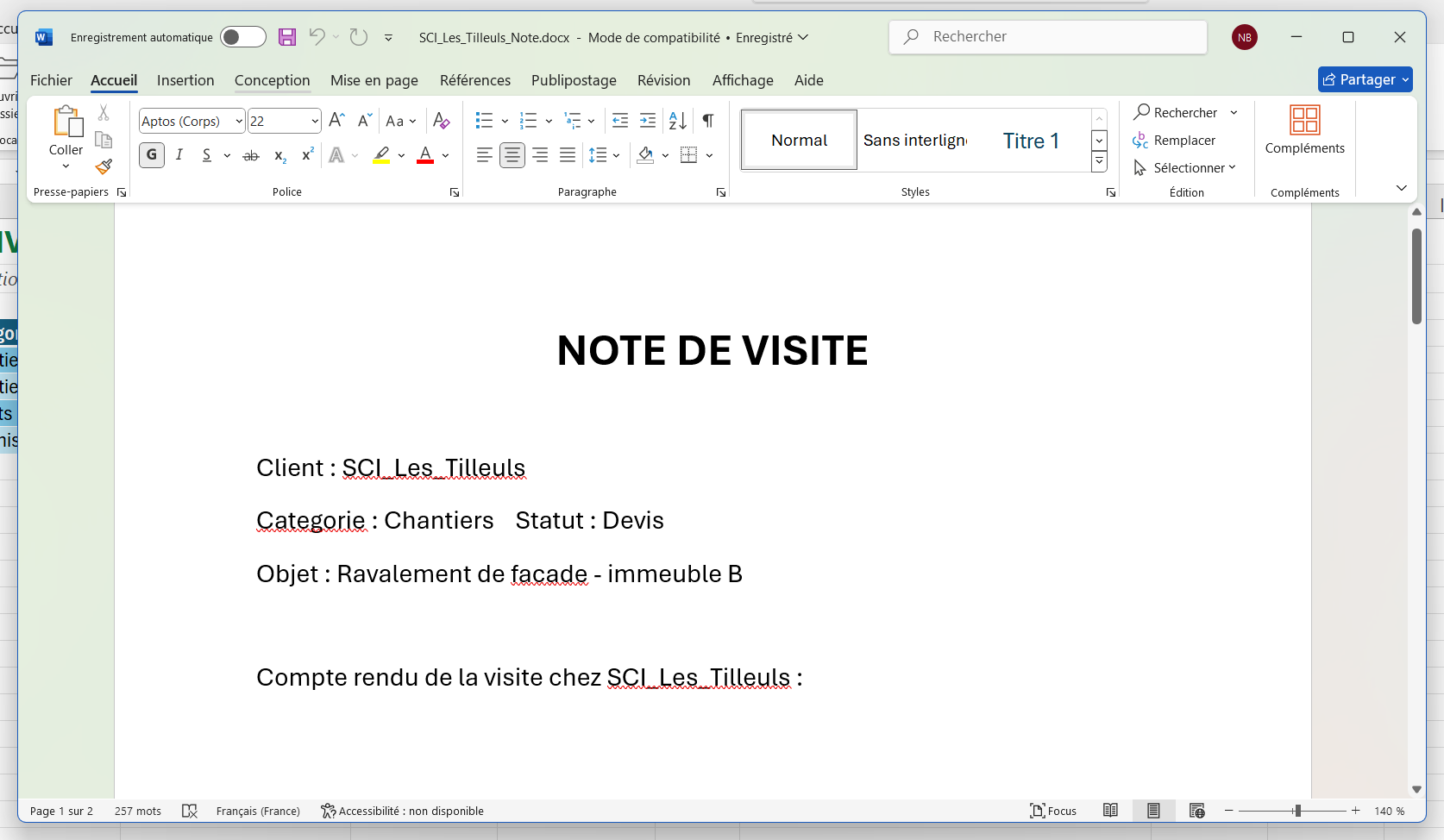
    A Word document open, already filled in for the client SCI Les Tilleuls
    The document opened from the ribbon: client, category, status and subject are already at the right value.

    The “Templates” button: what is missing, what already exists

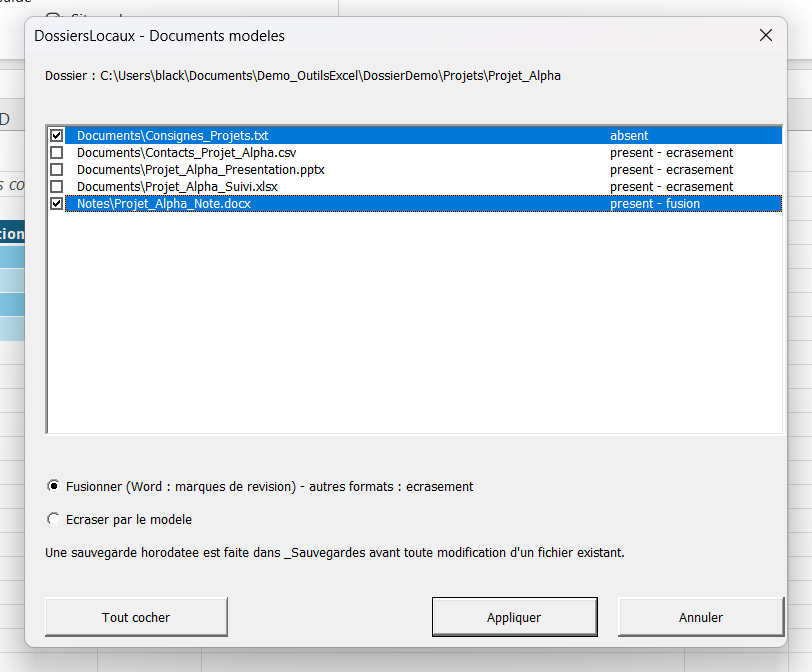
    It lists the documents applicable to the row's folder, with their status: absent or already present. Only the absent ones are ticked in advance — they are the only ones that cannot overwrite anything.

    The client's folder does not exist yet? The form opens anyway, the button becomes Create, and only the ticked documents are created.

    Template documents form: list of documents and their status
    One document per row, its status on the right, and the application mode at the bottom.

    The template has changed? Your documents update themselves

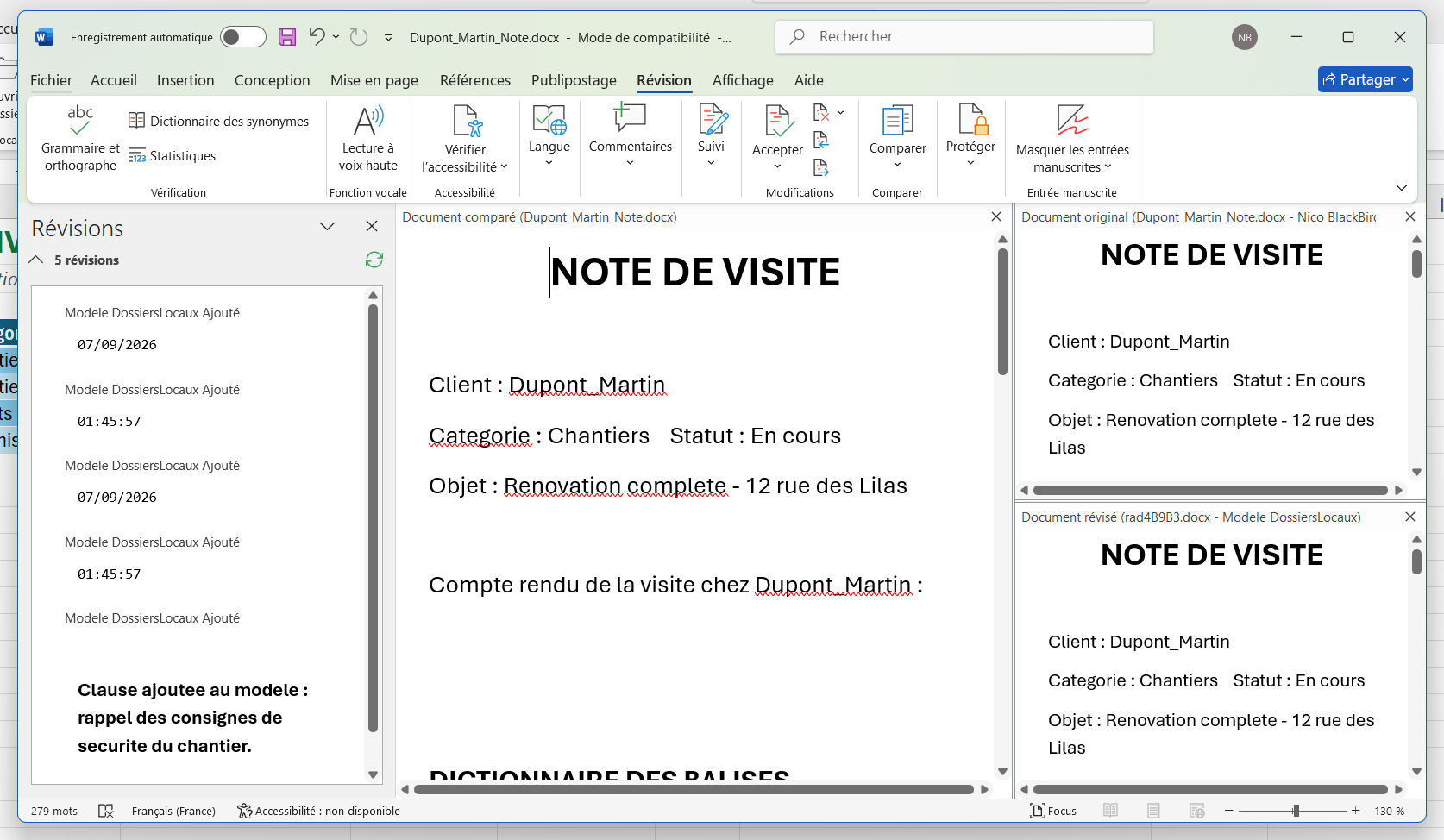
    This is the one place in the product that touches an existing client file — so it does so with kid gloves: a Word comparison, every difference to accept or reject, and a backup copy laid down before any modification.

    Word showing the tracked changes coming from the corrected template
    The clause added to the template arrives as a tracked change, attributed to “Modele DossiersLocaux”. Text already typed by the client is untouched: you arbitrate difference by difference.
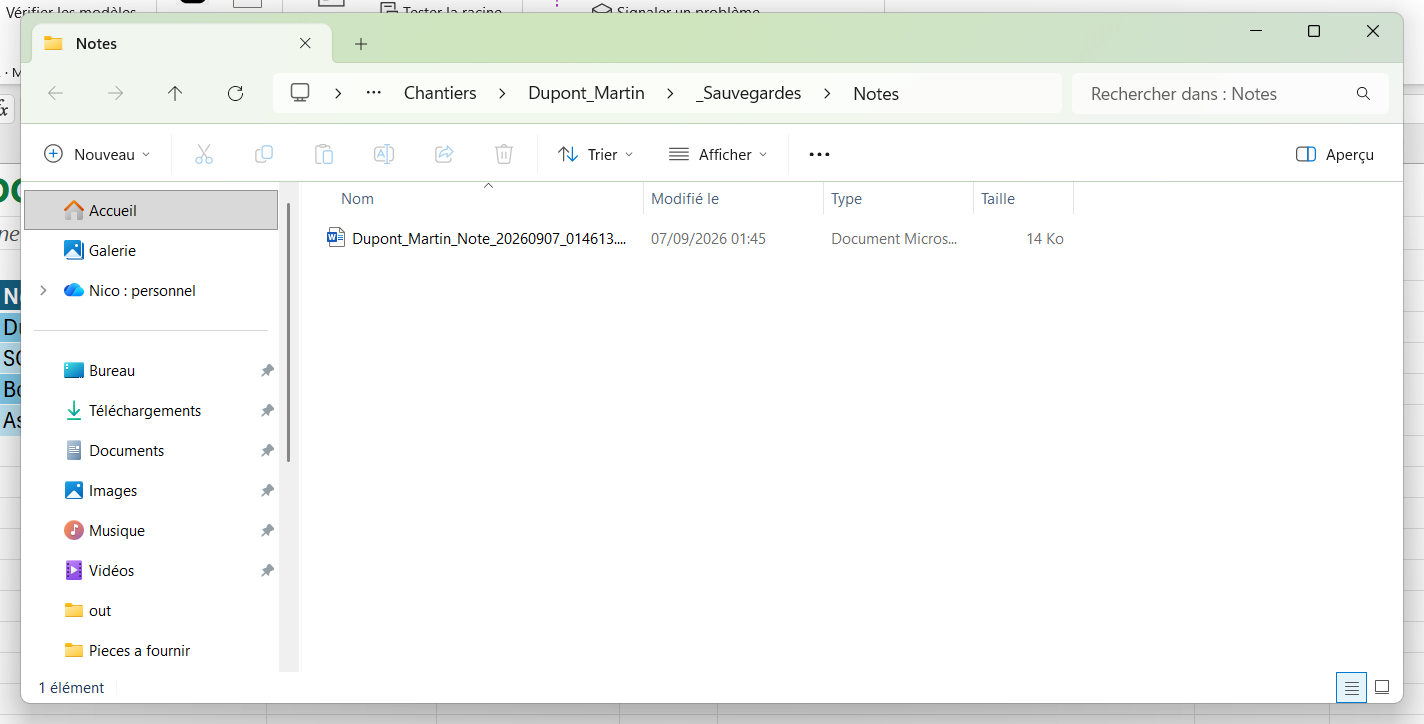
    A _Sauvegardes folder holding a time-stamped copy of the document
    Before touching it, a time-stamped copy is laid down in _Sauvegardes, keeping the sub-path. If the backup fails, nothing is modified.

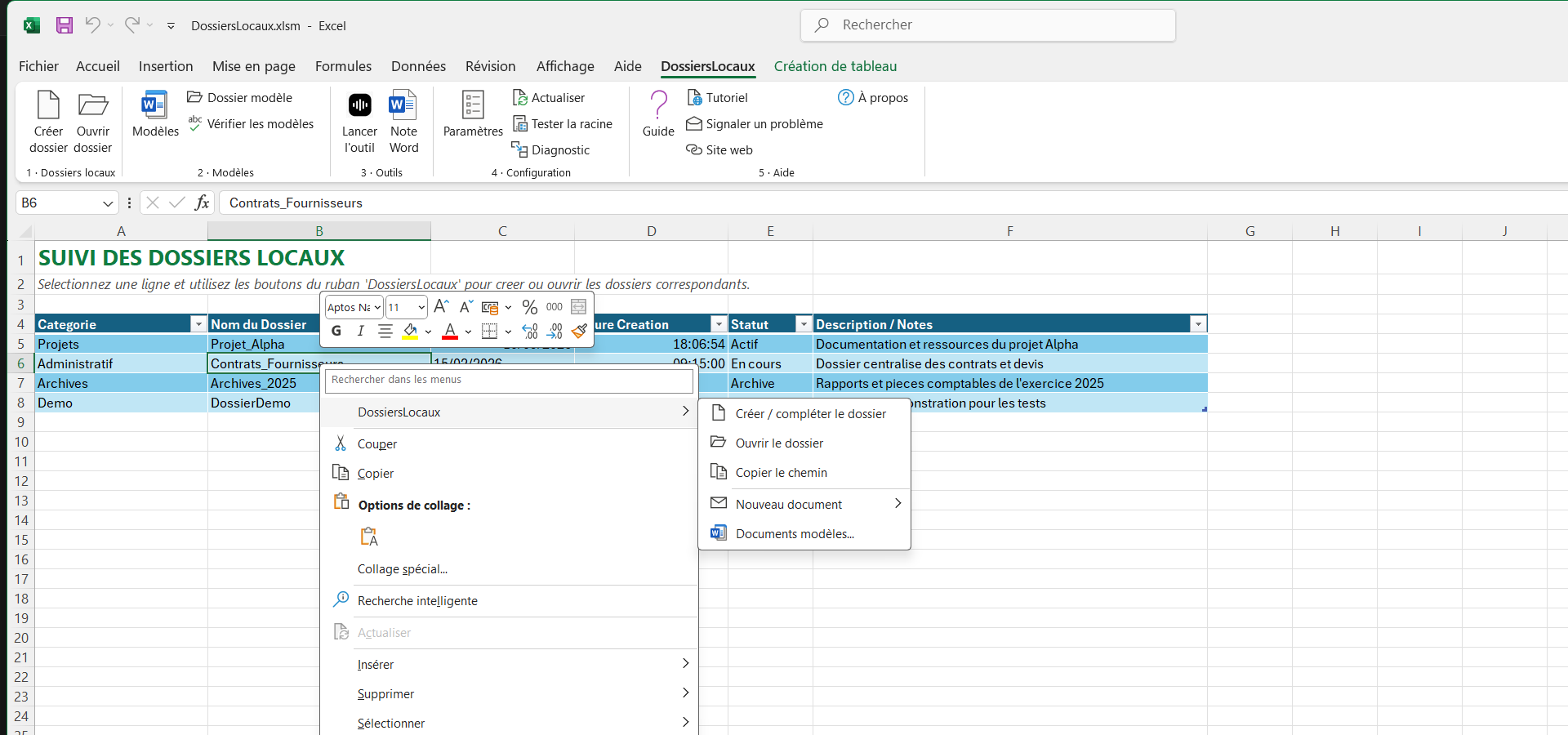
    The same actions, on right-click

    Without taking your eyes off the row: create or complete the folder, open it, copy its path, create a document from a template. The menu only appears on a configured workbook.

    The DossiersLocaux context menu on right-click over a row
    The right-click menu, in an ordinary range as well as in a structured table.

    Your trade tools, on the ribbon

    Up to 7 external tools, each with its name, its icon and its command-line arguments. A tool that is not configured does not appear; if none is, the whole group vanishes from the ribbon.

    The right software, on the right file, for the right row

    Each tool points to an executable and, if you want, to a file in the client folder — whose name can carry the same tags as your templates.

    • A missing file is created from the template at first launch
    • Command-line prefixes and suffixes, with column tokens
    • A custom icon per tool (BMP, JPG, PNG, ICO)
    • With no executable given, the file opens with whatever application Windows associates with it
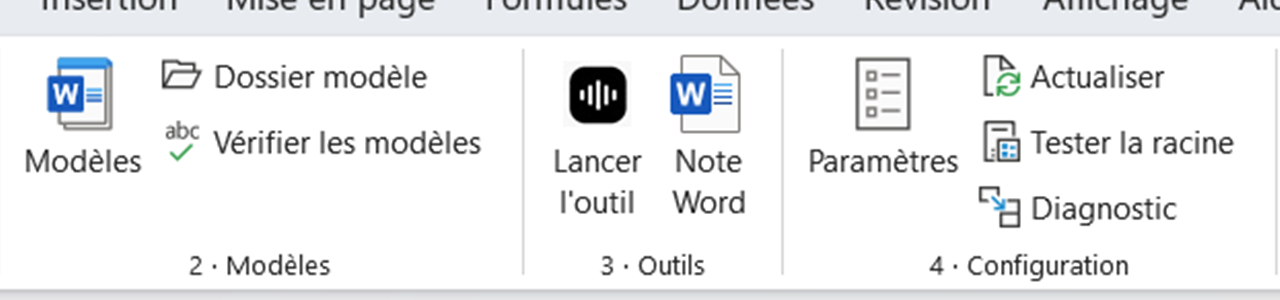
    The Tools group of the ribbon, between Templates and Configuration
    The Toolsgroup, between Templates and Configuration. Two tools are configured here: a generic button and “Note Word”, which opens the client's visit note.
    The complete DossiersLocaux ribbon, with its five groups
    The complete ribbon: folders, templates, tools, configuration and help. The labels switch to English if Office is in English — or simply by choice in the settings.

    Everything is set in one sheet

    No hidden options window, no registry: one Settingssheet, readable, editable, and documented line by line.

    What you decide there

    • The root folder, with variables such as %CLASSEUR% or %USERPROFILE%
    • Thefolder tree to create, over as many levels as needed
    • Which columns serve as category, name, date and time
    • The 7 tools, six settings each
    • The preview before creation: yes or no
    • The ribbon language: Auto, FR or EN

    A button placed opposite the tree copies the folder structure __Model__ : you draw your folders in Explorer, the workbook falls into line.

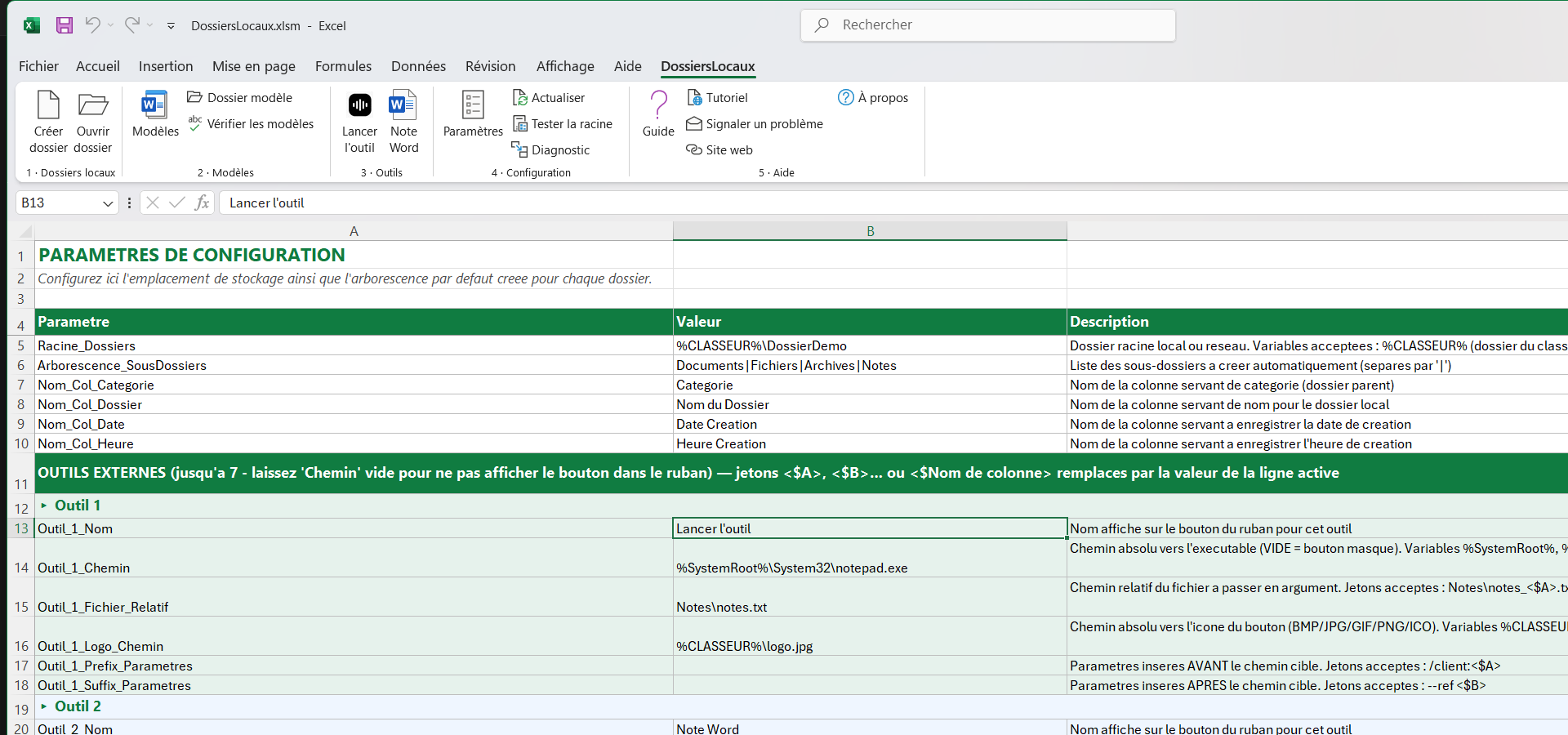
    The workbook's Settings sheet, with the root, the tree and the tools
    The settings sheet as delivered, exactly as it is.

    The safety nets

    A tool that writes to your disk has to be more careful than useful. Here is what is in place so that nothing gets lost.

    🛡️ Non-destructive, by design

    Only absent items are created. No file and no folder is ever deleted or overwritten — unless you explicitly ask for it in the Templates button.

    🗃️ Backup before modification

    Any modification of an existing file is preceded by a time-stamped copy in _Sauvegardes. If the copy fails, the operation is cancelled.

    📏 Paths that are too long

    Windows blocks beyond 259 characters. The add-in works out the longest path it is about to create, warns as it gets close and refuses beyond it.

    🌐 Root on OneDrive or on a network

    A synchronised folder, a network share or an https address do not behave like a local disk: each one gets targeted advice.

    🔓 Quarantined file

    A downloaded workbook carries the “mark of the web”. The add-in offers to remove it cleanly, and the tutorial shows the steps in pictures.

    🧰 Diagnostics and support

    Test the root shows what your variables are worth on this machine. Report a problem prepares a message with version, environment and settings.

    See the detailed tutorial, screen by screen →

    The complete filling-in of the Settings sheet, replayed line by line.

    Ready to save time?

    On quotation

    Custom ribbon

    Your own advanced functions, developed for your trade.

    from €500 incl. VATFree quotation within 48 h
    • An Excel ribbon designed around your processes
    • Buttons and VBA functions specific to your business
    • Number of external tools not capped at 7
    • Automatic naming and custom business rules
    • Connection to your existing files, templates or software
    • Documents generated from your own layouts
    • Source code delivered and commented, with no dependency
    See what is possible, with examples
    ✉️ Free quotation within 48 working hours — describe my need directly
    🛡️
    Satisfied or refunded — 30 days
    Try the add-in on your real folders, at no risk. If DossiersLocaux does not save you time, write to us within 30 days of your purchase: you are refunded in full, with no justification to provide and no argument.

    Doing it yourself

    The basic principle can be sketched in a few lines of VBA. Our guides explain the essential mechanics — and show why a home-made version soon becomes a headache.

    Guide Creating your folders from Excel How the VBA works, and the traps of Windows paths. Guide Filling a Word document from Excel The essentials of driving Word from VBA, and its practical limits.

    Frequently asked questions

    The questions asked before buying, and their answers without evasion. Got another one? write to us.

    How do I create a folder tree from Excel?

    You fill in a row of your table (folder name, category, date…), you click Create the folder in the ribbon: the complete tree is created on your disk, at the locations described in the sheet Settings, and the path is written back into the row. A preview shows the exact path before anything is written.

    What happens to a folder that already exists?

    It is completed, never overwritten. Missing subfolders are added, absent documents are dropped in, and everything already there stays in place. The add-in is non-destructive by design: it deletes no file.

    Can my Word documents be filled in automatically?

    Yes. Put your templates in the folder __Model__ shipped with the workbook and place tags in them such as <$Nom du Dossier> or <$Categorie>. When the folder is created, each document is copied and the tags are replaced with the row's values, including in headers and footers.

    And if I change a template afterwards?

    The update button replays the merge on folders already created. The differences arrive as Word tracked changes : you accept or reject each change, and a time-stamped backup is made before any modification.

    Do I have to install software or create an account?

    No. It is a macro-enabled Excel workbook (.xlsm): you extract it from the archive, you enable macros, the tab appears. No server, no database, no account, and your data never leaves your machine.

    Does it work on OneDrive or on a network drive?

    Yes, with one caveat the add-in announces itself: on a synchronised folder, creation is detected and flagged to avoid sync conflicts. Overly long paths (the Windows 260-character limit) are also checked before writing.

    Does the add-in work on a Mac?

    No. The custom ribbon and the driving of Word and Outlook require Excel on Windows, version 2016 or newer.

    How much does DossiersLocaux cost, and is there a subscription?

    €19 incl. VAT, once, for a lifetime licence. No subscription, no activation to renew. The VBA source is shipped open and commented, and the money-back guarantee runs for 30 days.

    Looking instead to set the workbook up once you have bought it? The setup tutorial details every setting, screen by screen.